Command Bar
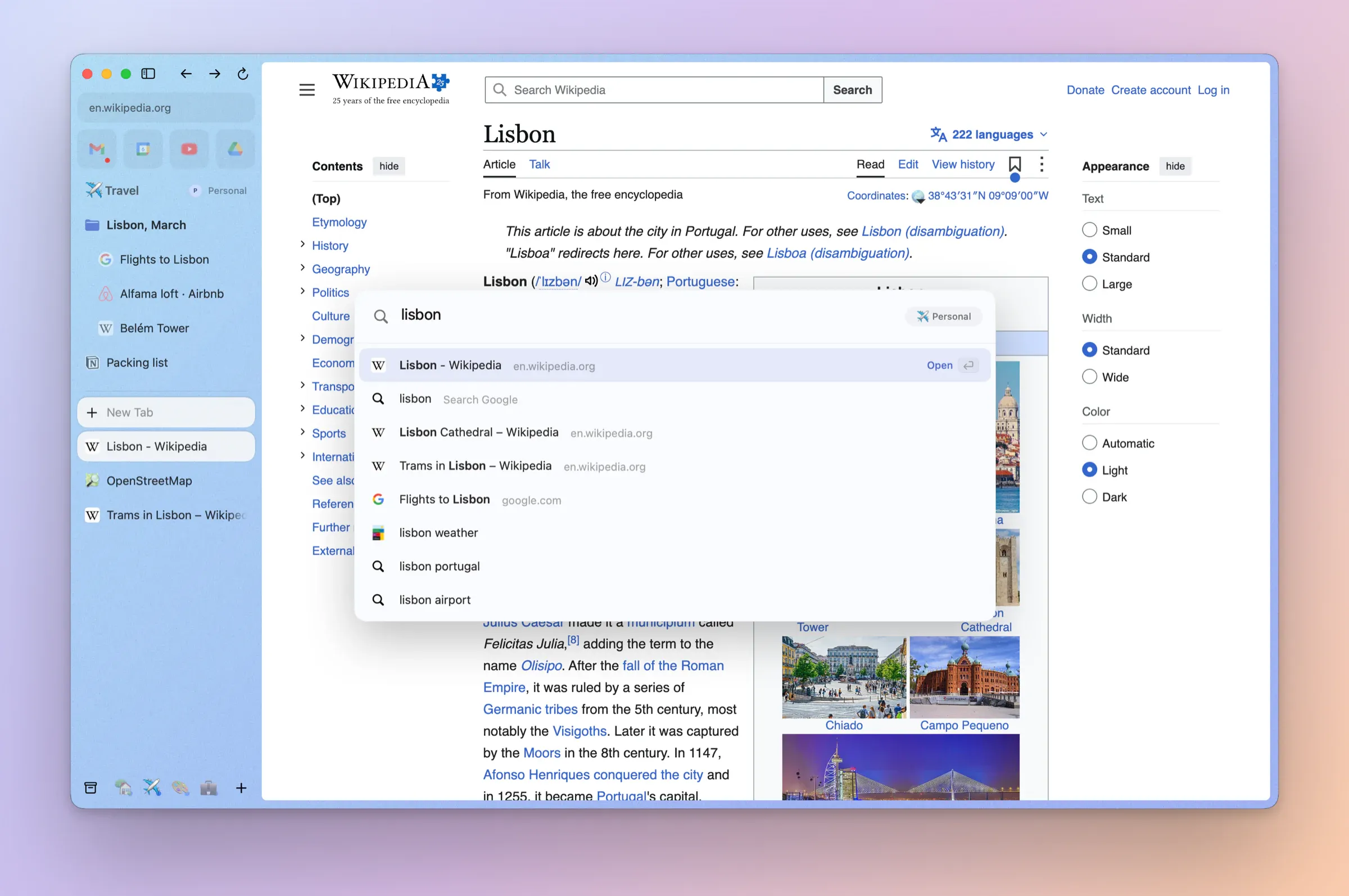
⌘T: tabs, history and search. One box for everything, on ⌘T.
⌘T
Search, open a site, jump to a tab or a Space, or run an action.
⌘L
Edit the current page's address in place.
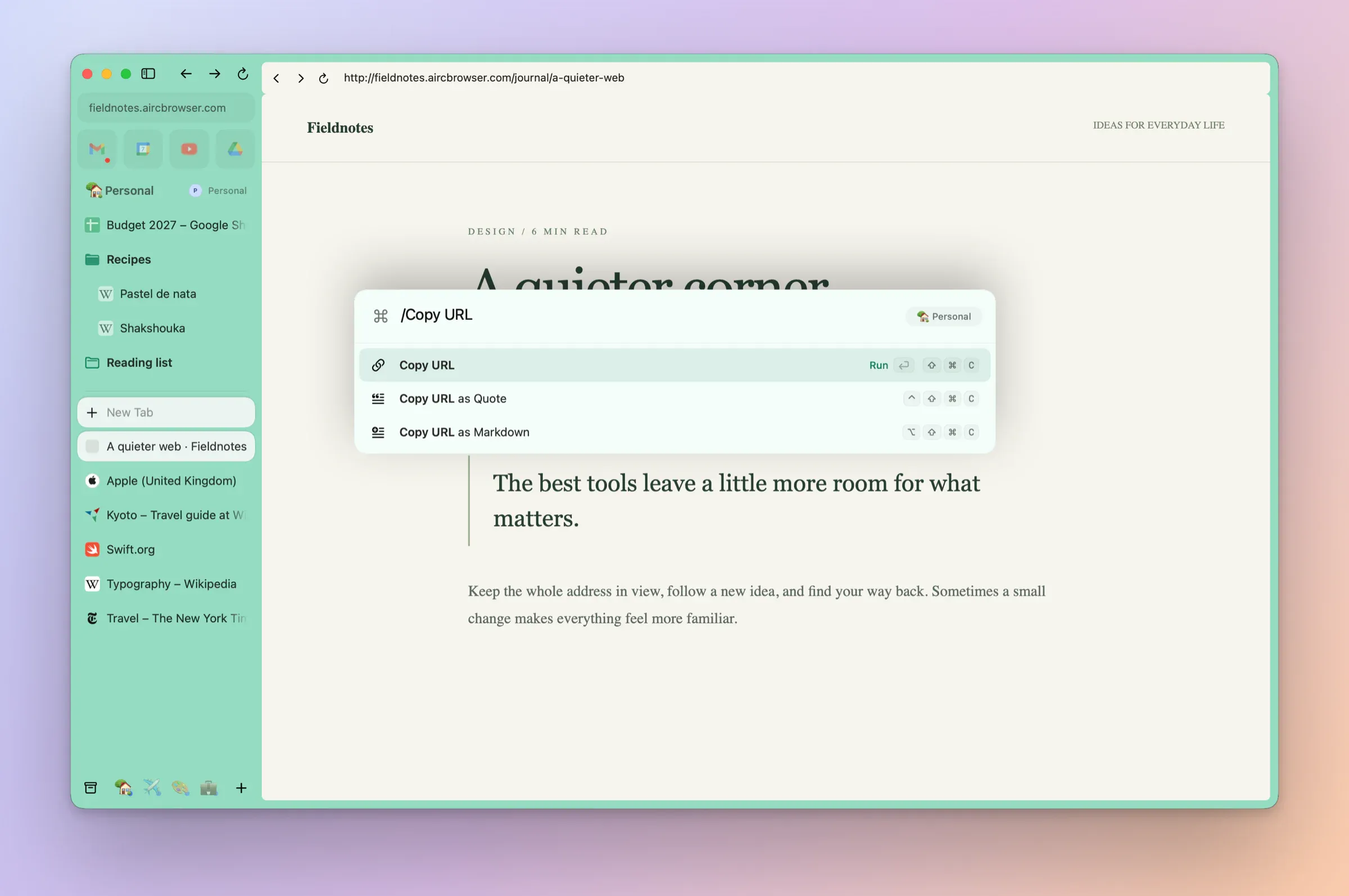
Copy links
Copy the page's address, or copy it as Markdown.
Copy as QuoteNew in 0.1.2
⌃⇧⌘C copies the text you selected as a Markdown quote, with the page's title and link.
Show ToolbarNew in 0.1.2
View › Show Toolbar adds a classic address bar over the page, if you want one.
Typing from the first keyNew in 0.1.8
⌘T processes the first character in about 8 ms instead of about 160 ms, so you can start typing straight away.
History during cleanupNew in 0.1.7
⌘T keeps suggestions from retained history while older entries are removed. Deleted history disappears immediately.
History at the limitNew in 0.1.6
⌘T keeps finding your browsing history promptly when it reaches its storage limit.
Remove a suggestionNew in 0.1.2
⇧⌫ removes a history suggestion you've moved to.
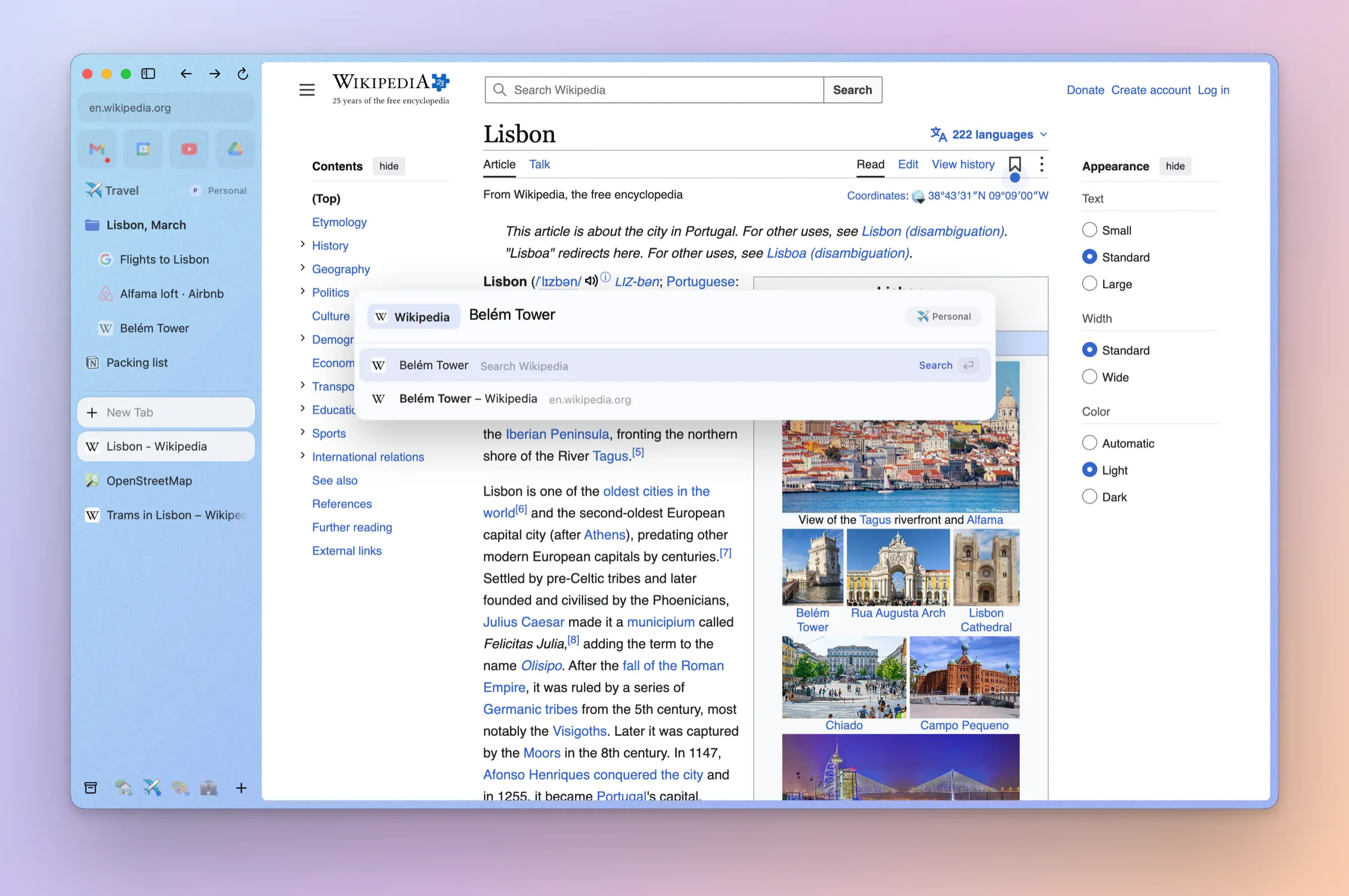
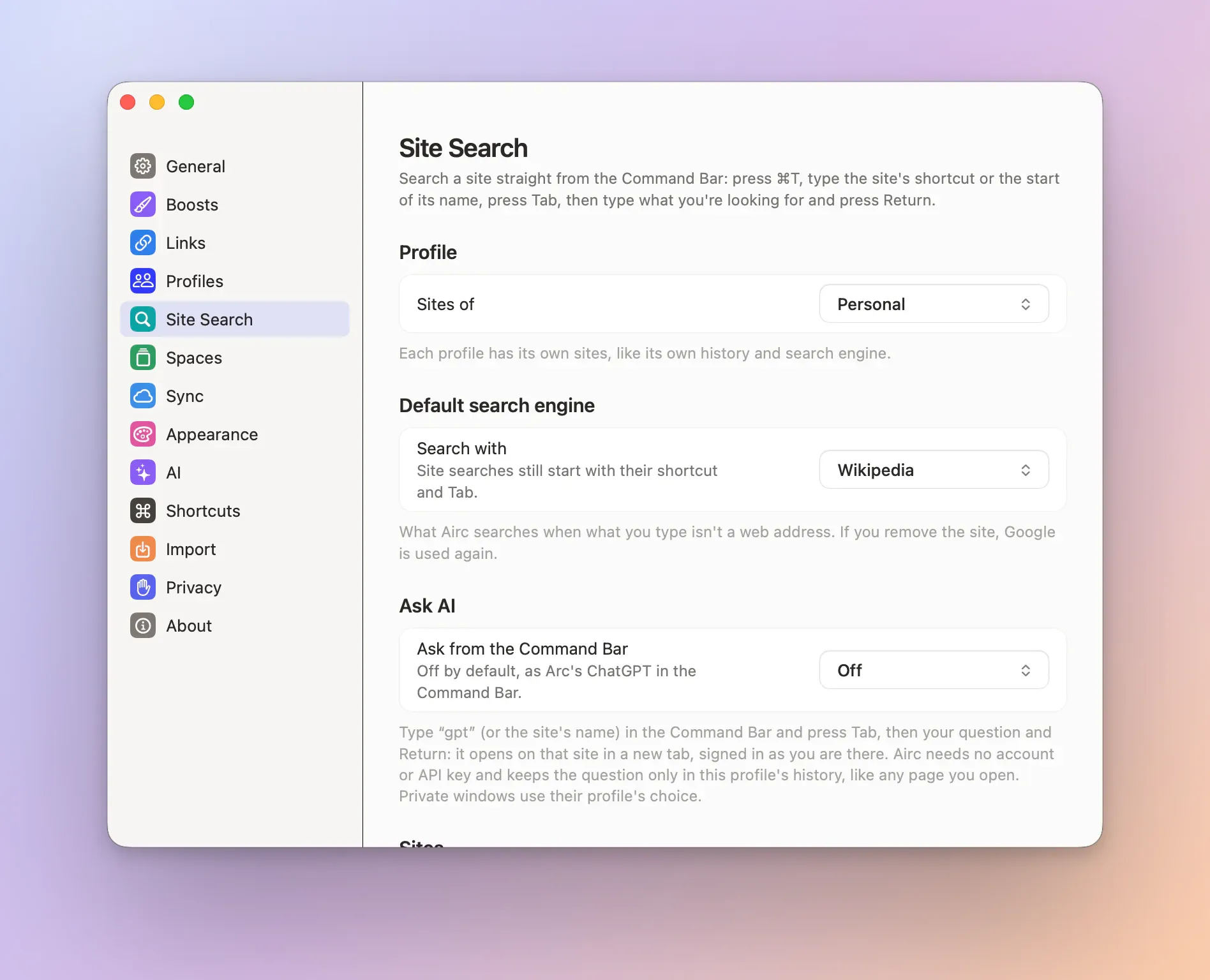
Site SearchNew in 0.1.3
Type a site's shortcut or name (yt, wiki, gh), press Tab, then your search, as in Arc.
Your own sitesNew in 0.1.3
Each profile has its own: Arc's built in, plus any you add in Settings → Site Search with a %s address.
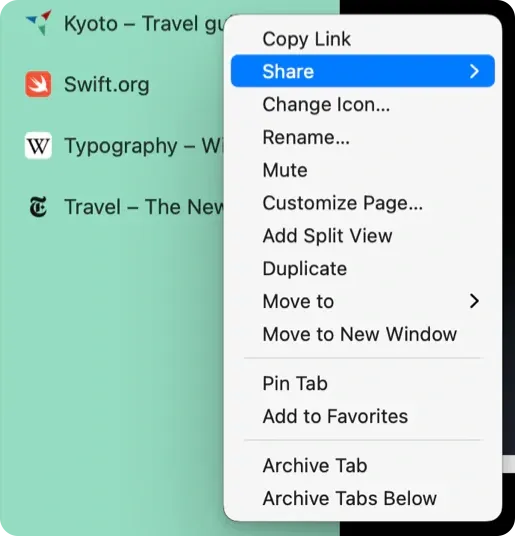
Share any tabNew in 0.1.3
Share › on every tab's, Favorite's and selection's menu, as in Arc.
Clean linksNew in 0.1.3
Copy Link, ⇧⌘C and Share leave out a link's trackers, as Arc's did.
Copy a tab's linkNew in 0.1.13
Rest the pointer on a tab in the sidebar and click the copy button beside ✕: its clean link is copied, and the tab stays where it is.
A folder as MarkdownNew in 0.1.3
Copy All Links as Markdown copies a folder's links with their titles and nesting.
A link to the text you copiedNew in 0.1.3
After ⌘C on a sentence, Airc offers a link that opens the page at that text, highlighted.
Copy Quote LinkNew in 0.1.29
Select text, then Copy Quote Link in the page's menu or Share Quote under the address: a link that opens the page at that text. PDFs and private pages get a plain link.
Quote links on whole wordsNew in 0.1.13
A link to a quote you copied always starts and ends on whole words, so it finds and highlights the text.
Share Quote under the addressNew in 0.1.16
Select text on a page and a small Share Quote button shows under the address, as in Arc. One click copies a link that opens the page at that text.
Every menu command in ⌘TNew in 0.1.3
Anything in the menu bar can be found in the Command Bar: try "read aloud".
Cycle through your tabsNew in 0.1.4
Cycle Tab Forward and Backward visit the Space's tabs in the order you last used them.
Your default searchNew in 0.1.4
Make any saved site search the profile's default in Settings → Site Search, and the Command Bar uses it for ordinary searches too.
Your search engineNew in 0.1.6
Each profile picks its own: Google, Bing, DuckDuckGo, Ecosia, Brave, Yahoo, Startpage, Perplexity or Kagi, with Arc's per-profile switch for search suggestions. Right-click selected text to search it there.
Your engines, importedNew in 0.1.11
Importing from Arc, Chrome or Brave brings each profile's default search engine and the shortcuts you made, so "yt", Tab still searches YouTube.
Imported engines suggestNew in 0.1.26
A search engine or shortcut you imported suggests as you type, like the built-in ones, with the same switches. Not in private windows.
Real icons, and sites you can trustNew in 0.1.5
Every site in ⌘T shows its own icon, or its first letter on its own colour, and each row says what it is. The Chrome Web Store, Google's apps, GitHub and Apple Support get a check mark from Airc's own list, never a look-alike address.
Site Search, in ⌘T.